Windows 11 KB5127936 out with big changes, direct download links for offline installer (.msu)
Windows 11 KB5127936 is rolling out, and it FINALLY lets you customize the context menu, which means you can now choose what appears when you right-click anywhere. Microsoft has published direct download links for the KB5127936 offline installer (.msu), but in most cases, you should use Windows Update.
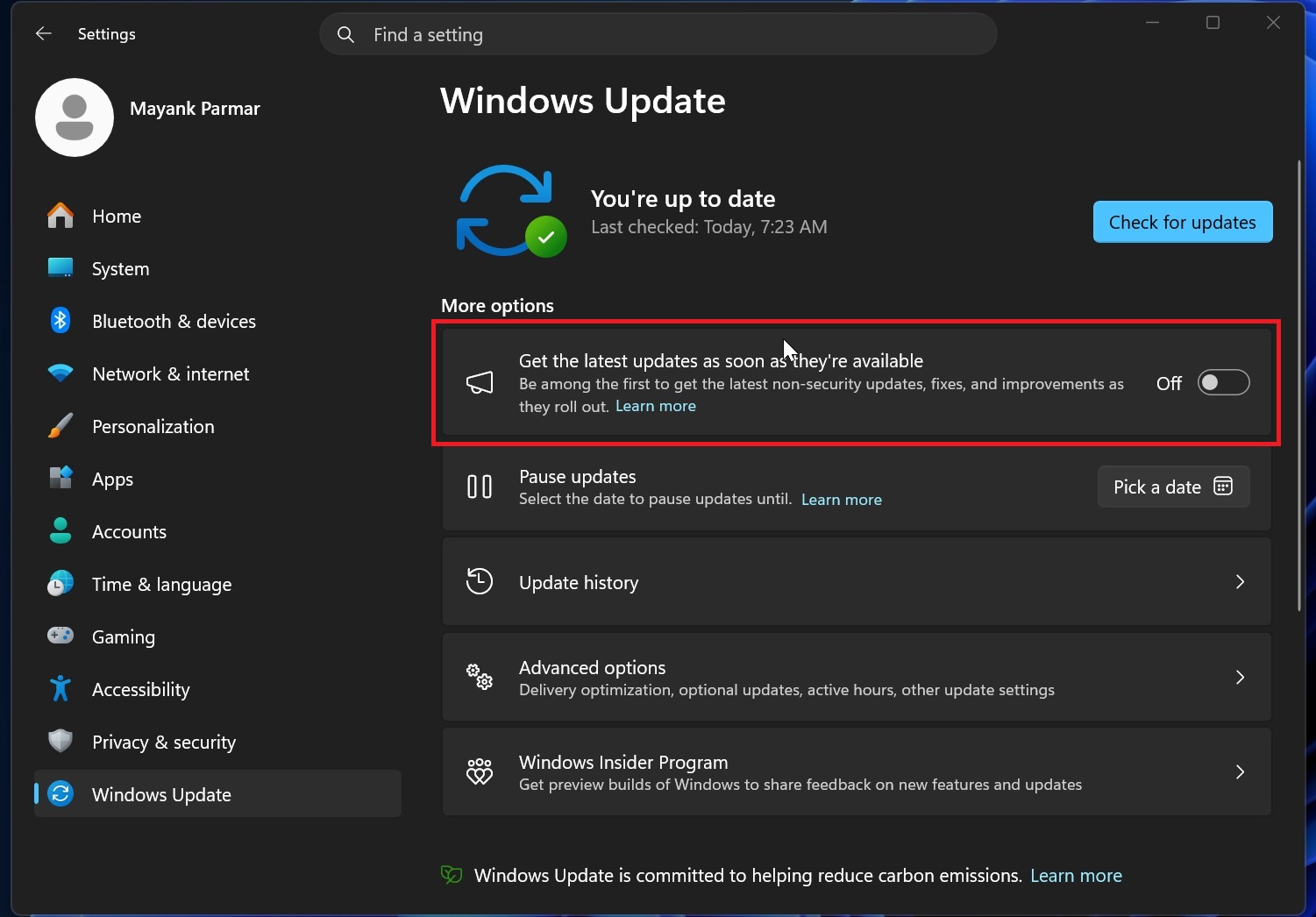
KB5127936 is an optional update, and it won’t download or install automatically on PCs where the toggle “Get the latest updates as soon as they’re available” is turned off. This update is listed as “2026-10 Preview Update (KB5127936) (26300.9818)” on PCs with Windows 11 26H2.
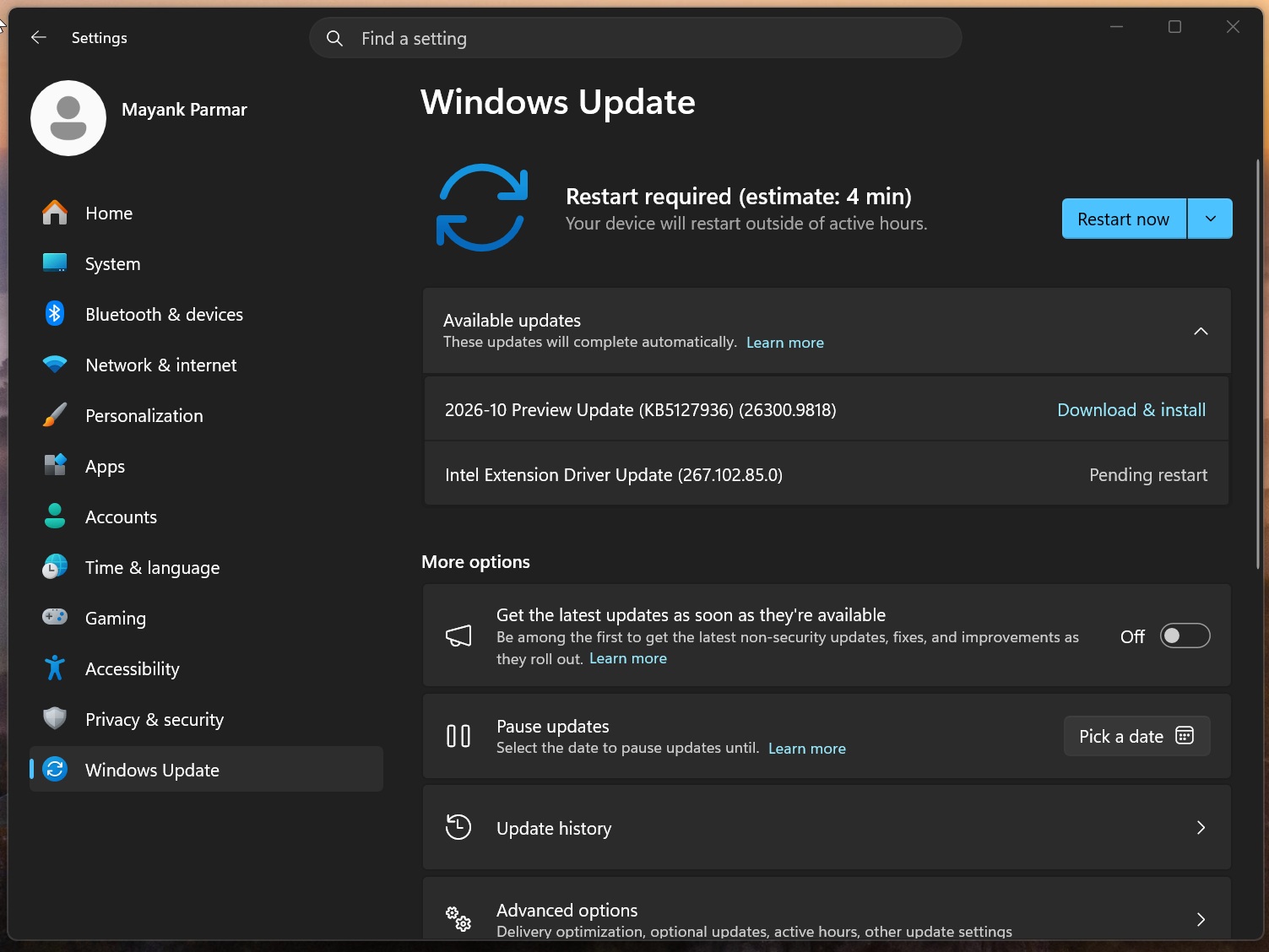
In case you’re on version 25H2, you’ll see Build 26200.9818, but the KB ID won’t change. Also, if you’re still on Windows 11 24H2, you won’t be getting today’s optional update or any updates going forward, as the OS version reached end of support on October 13. You should verify your Windows version under Settings > System > About.
Note: If you do not install an optional update like the one rolling out today, you do not miss out on anything.
Optional updates are considered “production quality” despite the “preview” label (not to be confused with the Windows Insider Program), but you don’t have to rush installation, as everything included in Windows 11 Build 26300.9818 will roll out to everyone on November 10 as part of Patch Tuesday.
Download links for Windows 11 KB5127936
Windows 11 KB5127936 direct download links: 64-bit and ARM64 | As with all updates, you again have the opportunity to use the Microsoft Update Catalog to download offline installers for today’s update and update multiple PCs with or without an internet connection.
I personally recommend the Update Catalog only when Windows Update is not working.
The size of the update is usually under 2GB if you use Windows Update, but if you use Update Catalog and manually download offline installers, you’ll be downloading a whopping 5GB .msu installer. Windows 10 updates used to be less than 700MB via Update Catalog, but as Microsoft bundles AI models, even for unsupported PCs, the download size is higher.
Build numberSizeOS versionArchitecture26300.98185180.8 MBWindows 11 26H2x64-based26300.98184973.5 MBWindows 11 26H2arm64-based26200.98185180.8 MBWindows 11 25H2x64-based26200.98184973.5 MBWindows 11 25H2arm64-basedToday’s update is a cumulative release, so it comes bundled with all previous changes, including those that rolled out in August 2026. That means if you skipped or paused updates, you can unpause them and get all the changes in a single update.
What’s new in Windows 11 Build 26300.9818 (26H2) / Build 26200.9818 (25H2)?
Windows 11 Build 26300.9818’s changelog is not huge, but I think there are quite a few notable changes, and my personal favourite is the ability to customize the right-click menu. However, like every monthly update, you’re not getting everything out of the box, as changes roll out gradually.
Microsoft confirmed that the new context menu is also rolling out gradually and won’t show up on all PCs. You can consider turning on the “Get the latest updates…” toggle on the Windows Update page to increase your chances. But don’t expect most of these improvements to show up after applying today’s update.
1. The context menu can now be customized in Windows 11
Microsoft previously confirmed that it sees the Windows context menu, commonly known as the right-click menu, as “cluttered and sluggish,” and it also admitted that Windows 11 failed to address Windows 10’s context menu problems. In fact, Windows 11 made it worse, but it’s finally getting a big update.
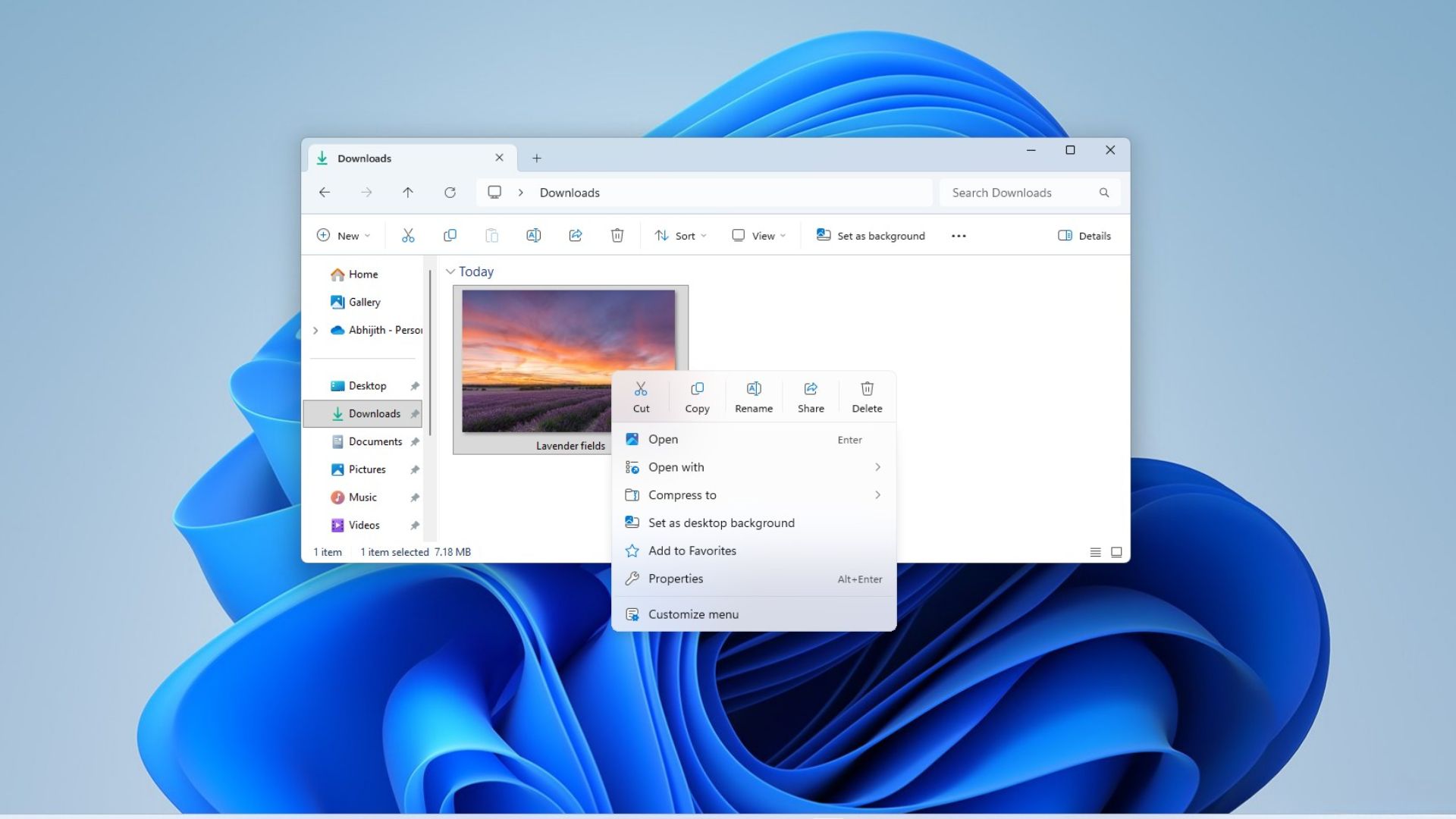
With Windows 11 KB5127936, you can now choose what appears when you right-click a file. I installed today’s update and right-clicked on an image in the Downloads folder, and the context menu looks decluttered straight out of the box:
https://www.windowslatest.com/wp-content/uploads/2026/08/Context-menu-before-and-after-update-comparison.mp4There’s a new “Customize menu” option in the right-click menu. If you click Customize menu, you will be taken to a new page in Windows Settings > Personalization.
From here, you can choose to turn on or off options like Send to, Print, Create shortcut, Copy as path, and Rotate image. For example, if you don’t want Print, Send to, Create shortcut, or Rotate options to show, you can toggle them off as I did:
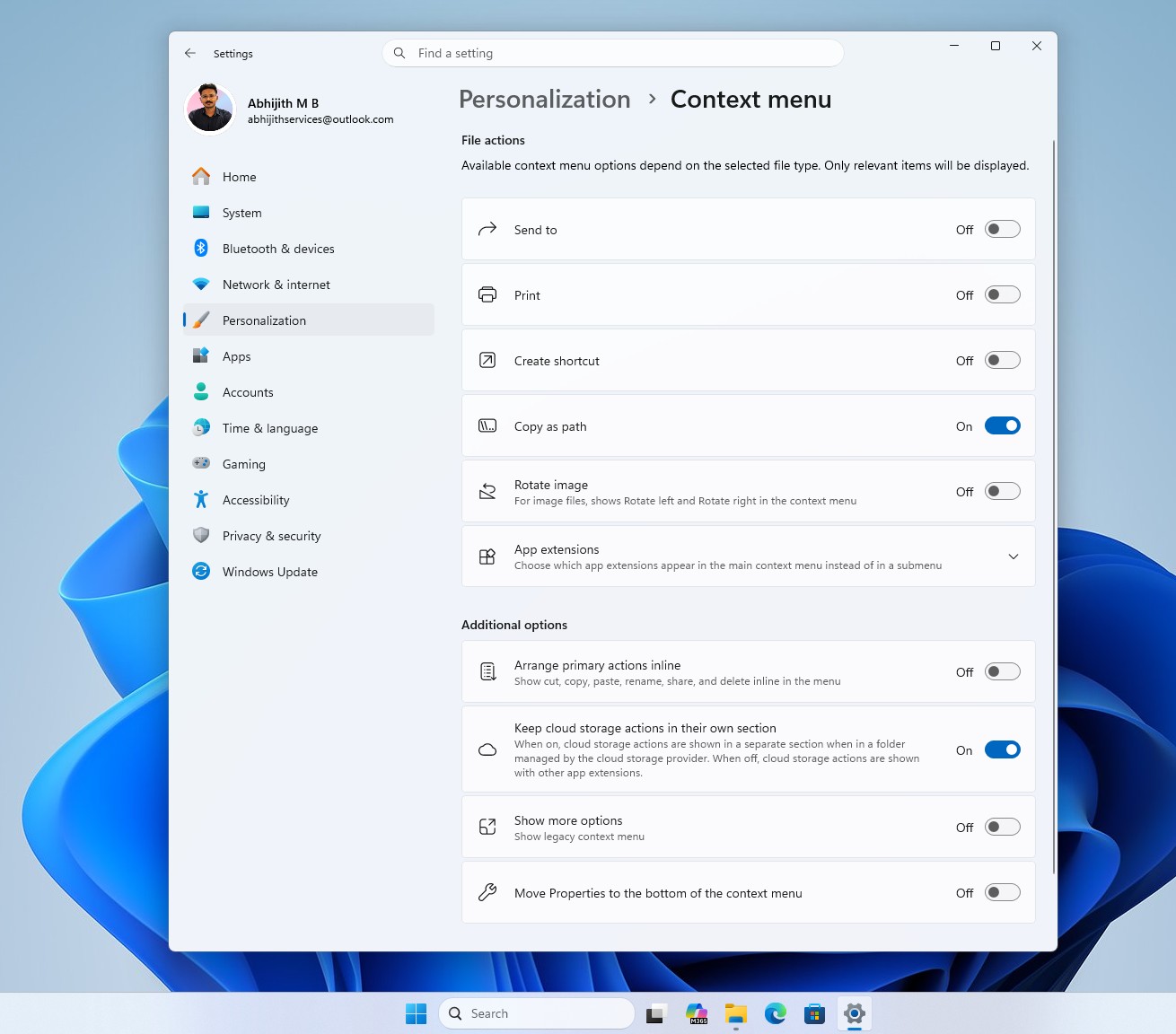
You also have other customization controls, such as the ability to show “cut, copy, paste, rename, share, and delete” inline in the menu, which could make the context menu a bit wider, but shorter at the same time. Finally, you can even enable the “legacy context menu,” so it appears right away without you having to hold Shift and right-click.
Now, if you look closely, there’s another feature called “App extensions,” which lets you manage extensions like “Open in Paint” or “Edit in Notepad.” You can choose what appears from third-party apps or first-party apps when you right-click. You can hide anything, including the Notepad option for .txt files:
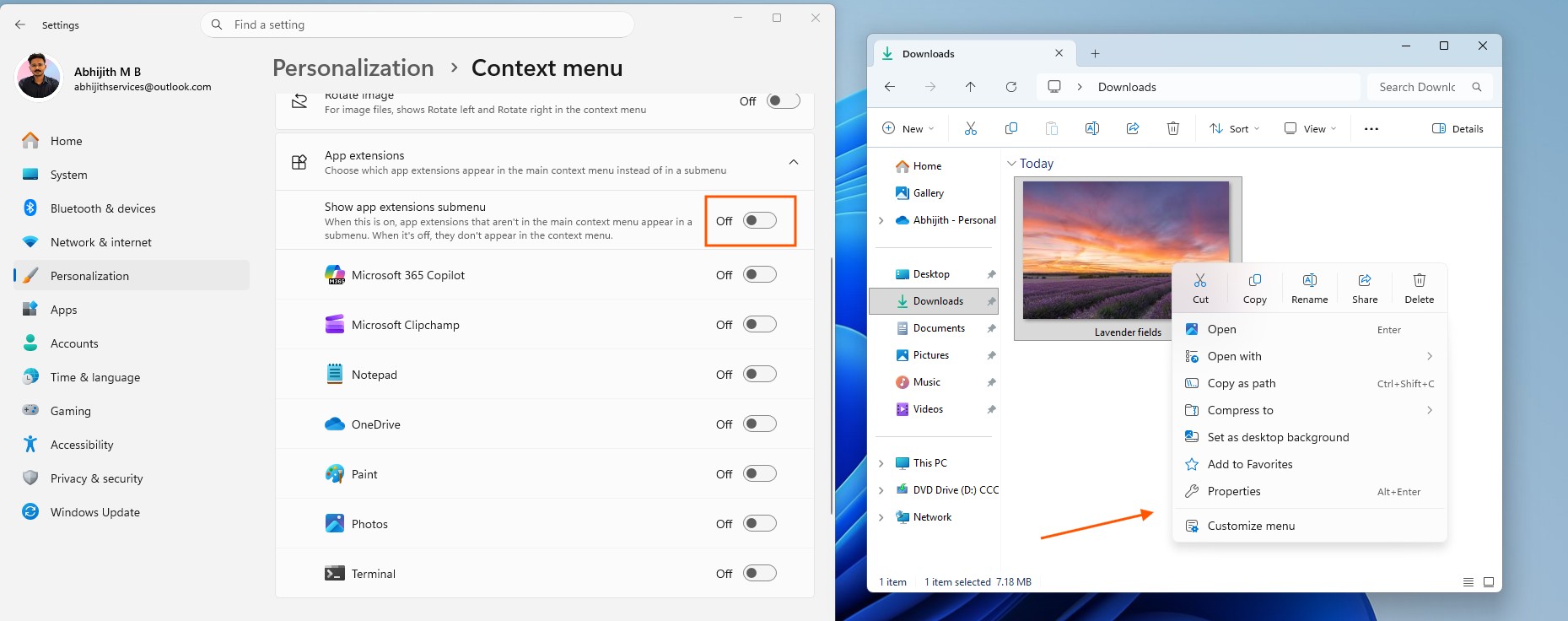
Finally, if you turn on the “Show app extensions submenu” toggle, all extensions like “Notepad,” “Paint,” “Photos,” and any third-party app will appear inside a new menu called “App extensions.” Here’s what it looks like after I turned on the feature, with all the options now clubbed in a new submenu:
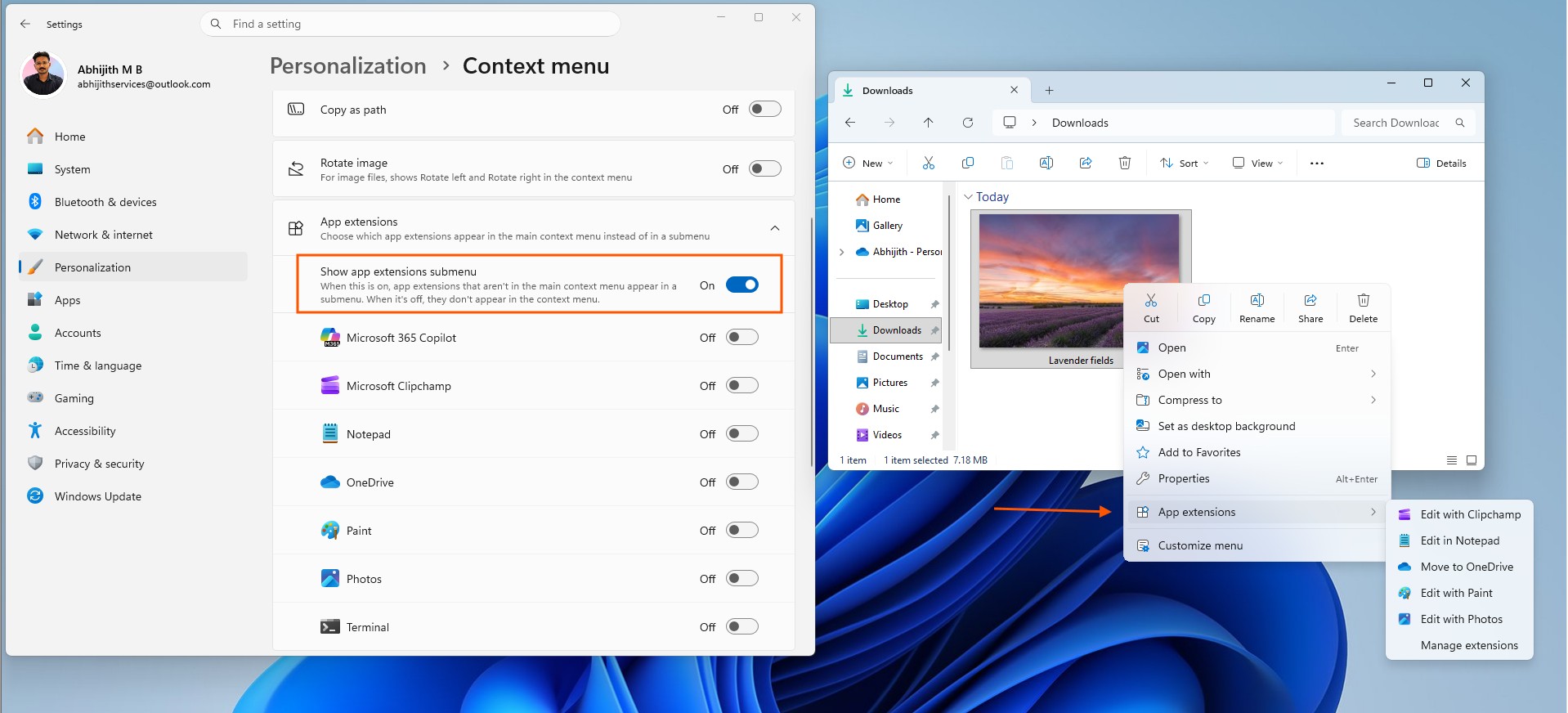 App extensions sub-menu in Windows 11 new context menu
And this change won’t break legacy apps, so if you right-click and go to the legacy menu, you can still access apps like 7-Zip:
https://www.windowslatest.com/wp-content/uploads/2026/08/Show-more-options-in-new-Context-menu.mp4Last but not least, after installing Windows 11 KB5127936, you will also notice that the right-click menu now opens much faster:
https://www.windowslatest.com/wp-content/uploads/2026/08/Windows-10-vs-Windows-11-new-context-menu-speed-comparison.mp4Microsoft told Windows Latest that making Windows 11 more customizable is one of its top priorities, and a customizable context menu is a step in the right direction. But it’s not the only customization improvement that landed this year.
Microsoft now also lets you customize the Start menu and choose what appears, so you can have just the “Pinned” section if you prefer, or only “All apps,” letting go of the “Recommended/Recent” section entirely.
2. File Explorer is getting better
Microsoft says it’s making the search results page more “consistent,” whether you launch a search from a specific volume, This PC, or Home. Regardless of where you begin searching in File Explorer, information like the date, location, or name will appear in a better layout. It looks less of a mess compared to what we have now.
There’s another notable improvement, and it’s to the squiggly keyboard key, ~, which didn’t have much of a use on Windows. Now, after you install Windows 11 KB5127936, you can open File Explorer, click on the address bar, and use ~ to go to your profile folder or its subfolders, including the famous AppData.
That means you can now use ~\AppData in File Explorer or Windows Run to quickly open this particular location. Last but not least, today’s update begins rolling out dark mode support for the Folder Options dialog in File Explorer!
However, we’re not seeing signs of the modern Properties sheet with WinUI and dark mode yet, as the feature still appears to be under development.
3. New Windows recovery options are rolling out
Windows 11 updates can be buggy, and I am not necessarily shifting the blame to Microsoft, as even its partners, such as HP or Dell, can cause unexpected problems.
Microsoft says it’s making sure Windows 11 drivers do not disrupt the experience, but at the same time, it’s also preparing new recovery options to give you greater control over your hardware when something goes wrong.
With Windows 11 KB5127936, WinRE can now automatically reuse one of the eligible Wi-Fi profiles saved in the OS and try to restore Windows by downloading a copy from Microsoft’s servers. This means that instead of waiting for you to intervene, Windows can now try to recover itself, and this feature will be enabled by default. Of course, a WinRE recovery powered by the cloud or Quick Machine Recovery will not delete any of your personal files, folders, or even settings.
There’s also a new recovery feature called ‘Cloud rebuild,’ which lets you reinstall Windows 11 using a Windows image (.ISO) and drivers downloaded directly from Windows Update, and this works even when Windows itself won’t restart. It means you no longer need USB media or have to prepare your own Windows recovery drive/image when this feature is toggled on.
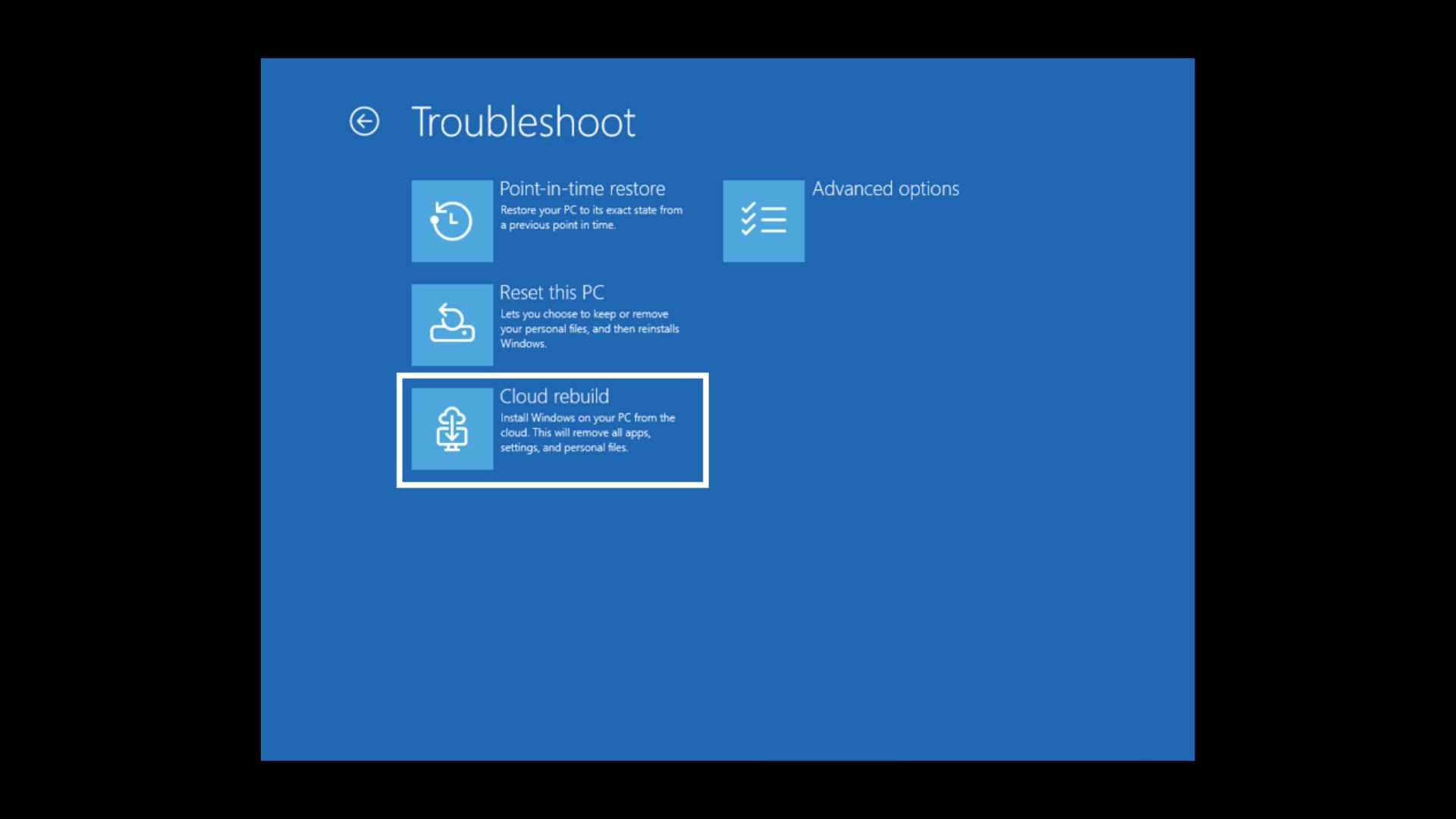 New Cloud rebuild option in Windows Recovery Environment (WinRE). Source: Microsoft
You can enable Cloud rebuild from Settings > System > Recovery.
Finally, if you end up using one of the recovery options and everything works out, you’ll now see a summary of what actually happened when you boot to the desktop. For example, Windows could explain which apps and settings it managed to restore when your PC was unable to boot.
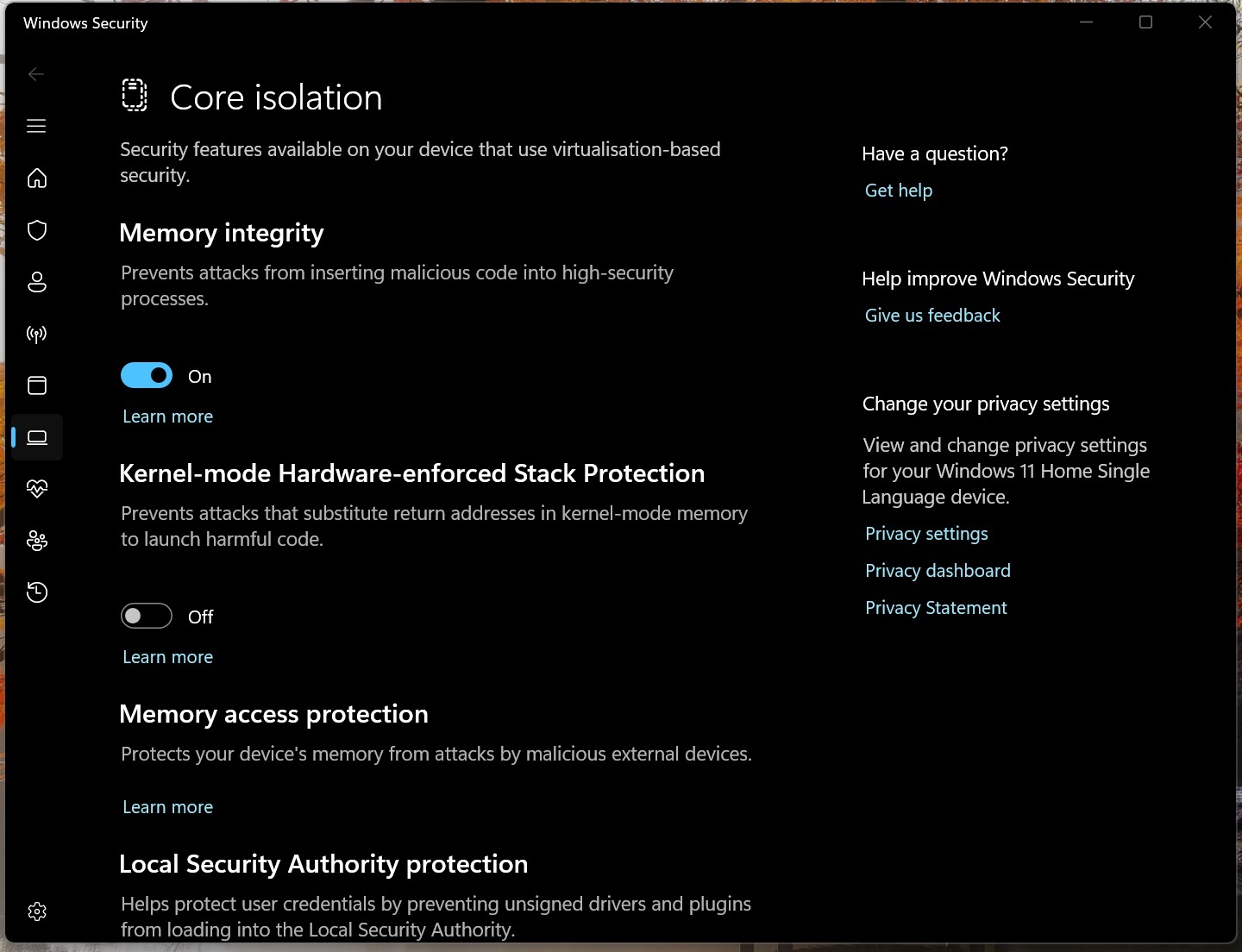
4. Memory Integrity is now getting turned on by default on eligible PCs
Memory Integrity, also known as Hypervisor-Protected Code Integrity or HVCI, is now getting turned on by default when you install Windows 11 KB5127936 or any newer/upcoming update, including the November 2026 Patch Tuesday update (mandatory).
For those unaware, Memory Integrity is a security feature that runs code integrity checks instead of trusting the Windows kernel blindly, and can verify if only trusted binaries or drivers are getting executed in system memory.
In theory, and even in practice, Memory Integrity has the potential to block malicious code, including rootkits, from accessing high-privilege processes, but there are concerns that it can hurt performance because it has significant processing overhead.
HVCI uses a “virtualization layer,” and kernel-mode driver calls go through it. Some reports previously suggested that FPS could drop by 5-15%, but Microsoft has never provided a number in recent years.
If you believe Windows is running slower than usual or your FPS takes a hit, you can try turning it off from Windows Security > Device Security > Core isolation:
5. Windows begins testing faster launches for apps already running, starting with Microsoft Edge
After installing Windows 11 KB5127936, you will notice that Microsoft Edge launches almost instantly if it’s already running in the background. It would already be running in the background if you launched and closed it. But the feature called “Accelerated app launch” will soon expand beyond just Edge.
Right now, Windows starts another process for the app when you launch it and it’s already in the background. That process discovers the app is already running, passes the launch request to the existing instance, and closes itself. But when accelerated app launch is enabled for the app, Windows sends the launch request directly to the existing instance, which means a temporary process is avoided, and that reduces the launch time.
Here’s a before-and-after test on our PC running the update:
https://www.windowslatest.com/wp-content/uploads/2026/10/Before-and-After-accelerated-app-launch-for-Edge-in-Windows-11.mp4Only Edge supports the feature for now, but developers can now update their apps to support it. I wouldn’t be surprised if more apps like Firefox, Chrome, or Spotify end up supporting the feature.
Other improvements rolling out to Windows 11 today
Last but not least, Microsoft says it fixed multiple major issues. And based on our tests, here’s the full list of all other improvements rolling out with Windows 11 KB5127936 (Build 26300.9818):
- You can now exit Xbox mode via a new navigation bar that appears in the Gaming Task View.
- There’s a new Device Info card on the homepage of Windows Settings. This was previously locked to the US, but now it works everywhere.
- If you use the Phone Link panel in the Start menu, you can now hover over a recent message or alert under the Recent section and quickly peek at its content. You can turn the feature on or off from the Phone Link app > Settings > Start menu personalization.
- You’ll notice that Windows now has better animations for previews of app windows when you hover over the icons in the taskbar.
- Magnifier continues to get better, and there are two notable changes in my tests. First, there’s a new contrast theme toggle, and it reduces screen glare when you zoom in, but colours stay the same. Second, it is now possible to zoom in per monitor if you have multiple monitors set up. This needs to be turned on from Settings > Accessibility > Magnifier.
- If you use Live captions, you will now find a new “Include screen reader audio” toggle, but it’s turned off by default. It needs to be toggled on in Settings > Accessibility > Captions.
- If Modern Standby is turned on, you will notice that it now works better with more reliable “instant-on” resumes.
- Microsoft is now allowing support for IPv6 CLAT for Wi-Fi and Ethernet network interfaces.
Microsoft says it’s not aware of any known issues, and as I noted, if you choose to skip today’s optional update, you will get everything on November 10 when this year’s second-to-last Patch Tuesday rolls out.